Snipdeck Beta Snip it, keep it on top, find it by its text.
Hold Win on Windows, or Super and Alt on GNOME, and drag a region: the snip stays on screen as a floating window, its text is recognised on your device, and it lands in a searchable gallery. Free and open source.
Hold, drag, choose where it goes
Hold Win on Windows, or Super Alt on GNOME, and drag a region; on KDE Plasma, sway and Hyprland, use the hotkeys. The modifier you add decides where the snip goes.
Hold Win and drag with the left mouse button.
- Win + drag
- Floating snip on screen
- On screen: yes
- Clipboard: no
- Gallery: yes
- Win + Ctrl + drag
- Floating snip and clipboard
- On screen: yes
- Clipboard: yes
- Gallery: yes
- Win + Alt + drag
- Clipboard only
- On screen: no
- Clipboard: yes
- Gallery: no
- Win + Shift + drag
- Gallery only
- On screen: no
- Clipboard: no
- Gallery: yes
- Win + Ctrl + Shift + drag
- Gallery and clipboard, no window
- On screen: no
- Clipboard: yes
- Gallery: yes
- Win + Shift + Space then drag
- Freeze first, then select The screen freezes and you select on the still image, so hover-only tooltips are captured too.
With Snipdeck’s GNOME extension; on GNOME, Super + drag moves windows, so Alt is held too. For clipboard only, use the hotkey.
- Super + Alt + drag
- Floating snip on screen
- On screen: yes
- Clipboard: no
- Gallery: yes
- Super + Alt + Ctrl + drag
- Floating snip and clipboard
- On screen: yes
- Clipboard: yes
- Gallery: yes
- Super + Alt + Shift + drag
- Gallery only
- On screen: no
- Clipboard: no
- Gallery: yes
- Super + Alt + Ctrl + Shift + drag
- Gallery and clipboard, no window
- On screen: no
- Clipboard: yes
- Gallery: yes
On every platform, and the way to capture on KDE Plasma, sway and Hyprland. Press the keys, the screen freezes, then drag the region. On Wayland you can change the keys in your desktop’s shortcut settings.
- Ctrl + Alt + Shift + A then drag
- Floating snip on screen
- On screen: yes
- Clipboard: no
- Gallery: yes
- Ctrl + Alt + Shift + C then drag
- Floating snip and clipboard
- On screen: yes
- Clipboard: yes
- Gallery: yes
- Ctrl + Alt + Shift + X then drag
- Clipboard only
- On screen: no
- Clipboard: yes
- Gallery: no
For a single snip without holding a key, right-click the tray icon and choose New Snip, or press Ctrl Alt Shift A.
Capture shortcuts in the docs →After the snip
- Floating snips
- A snip becomes a borderless window that stays above the others. Drag, resize, pin, crop or rotate it. On GNOME, the bundled shell extension makes this possible.
- Annotation and collage
- Pen, highlighter, shapes, arrows and text; undo and redo. Lay several snips out as one image in a grid, rows or masonry.
- Text recognition and translation
- Each snip’s text is recognised on your device: by Windows’ own OCR engine (
Windows.Media.Ocr), or by Tesseract on Linux. Translate the recognised text into any of 29 languages. - Gallery
- Full-text search over OCR text, window title, monitor and path; filter by status, content, size and date. Ctrl F jumps to search.
- Light on resources
- A native app written in Rust, its interface drawn with Slint: no browser engine inside, no runtime to install. About 68 MB of memory with the gallery open; next to no CPU while it waits in the tray (0.05 %). How it was measured
Screens
From the app itself, with made-up content. The screenshots follow the page’s language and theme.
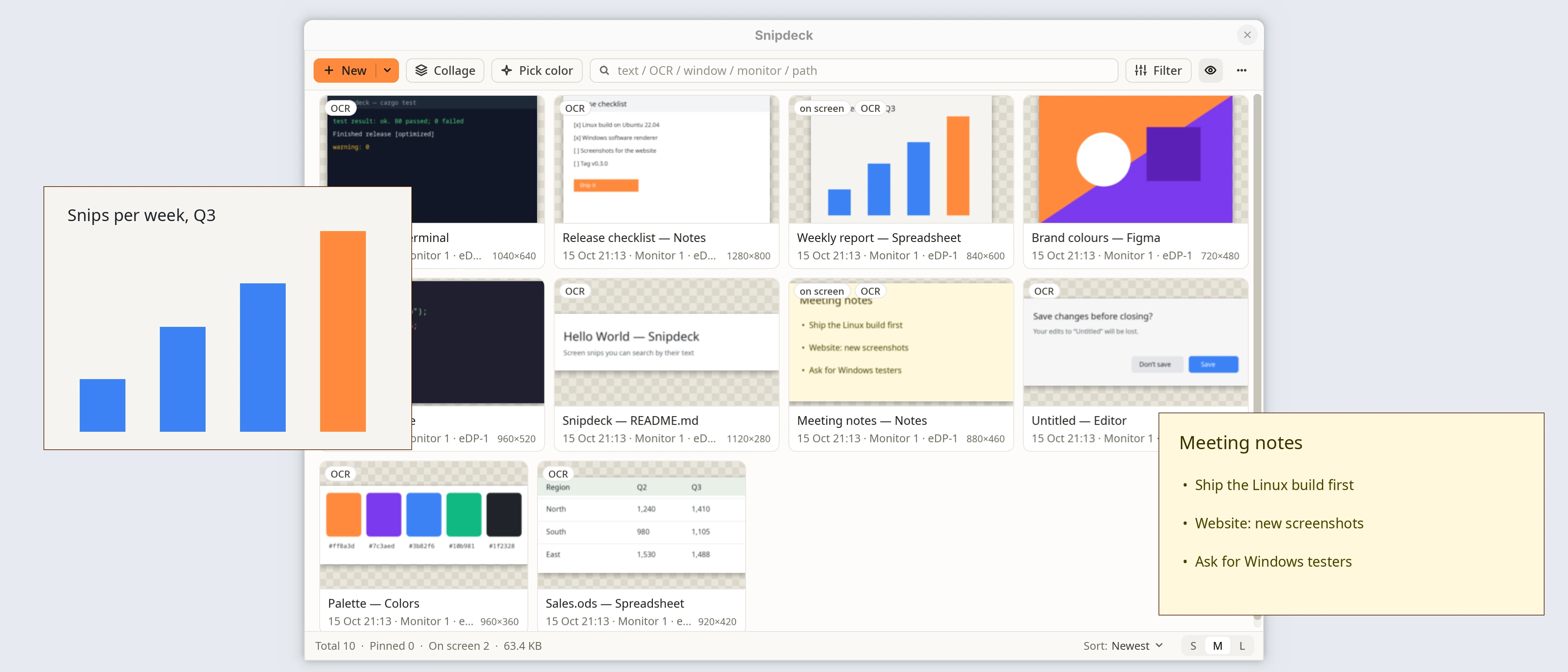
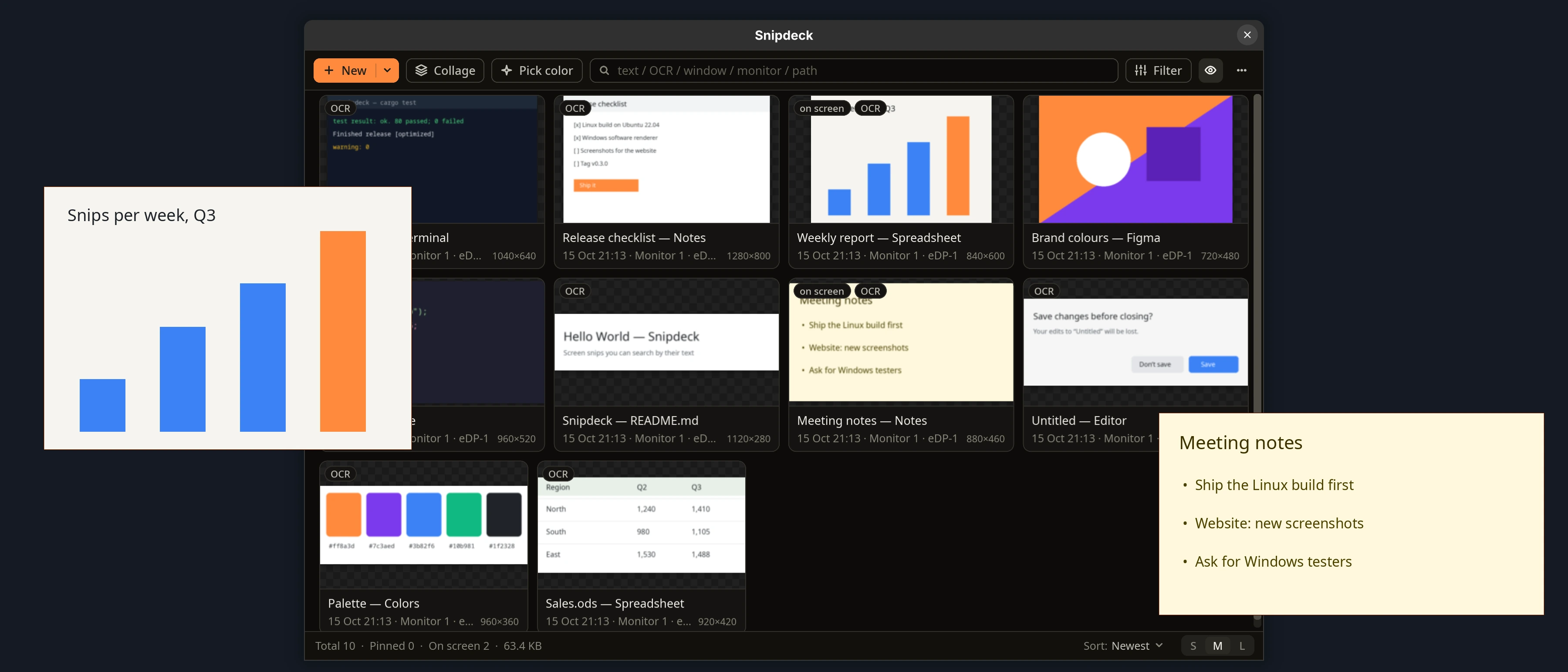
Every snip collects in one place
Each snip you take joins the gallery, searchable by window title, date and recognised text. The ones you keep on screen are marked on screen.
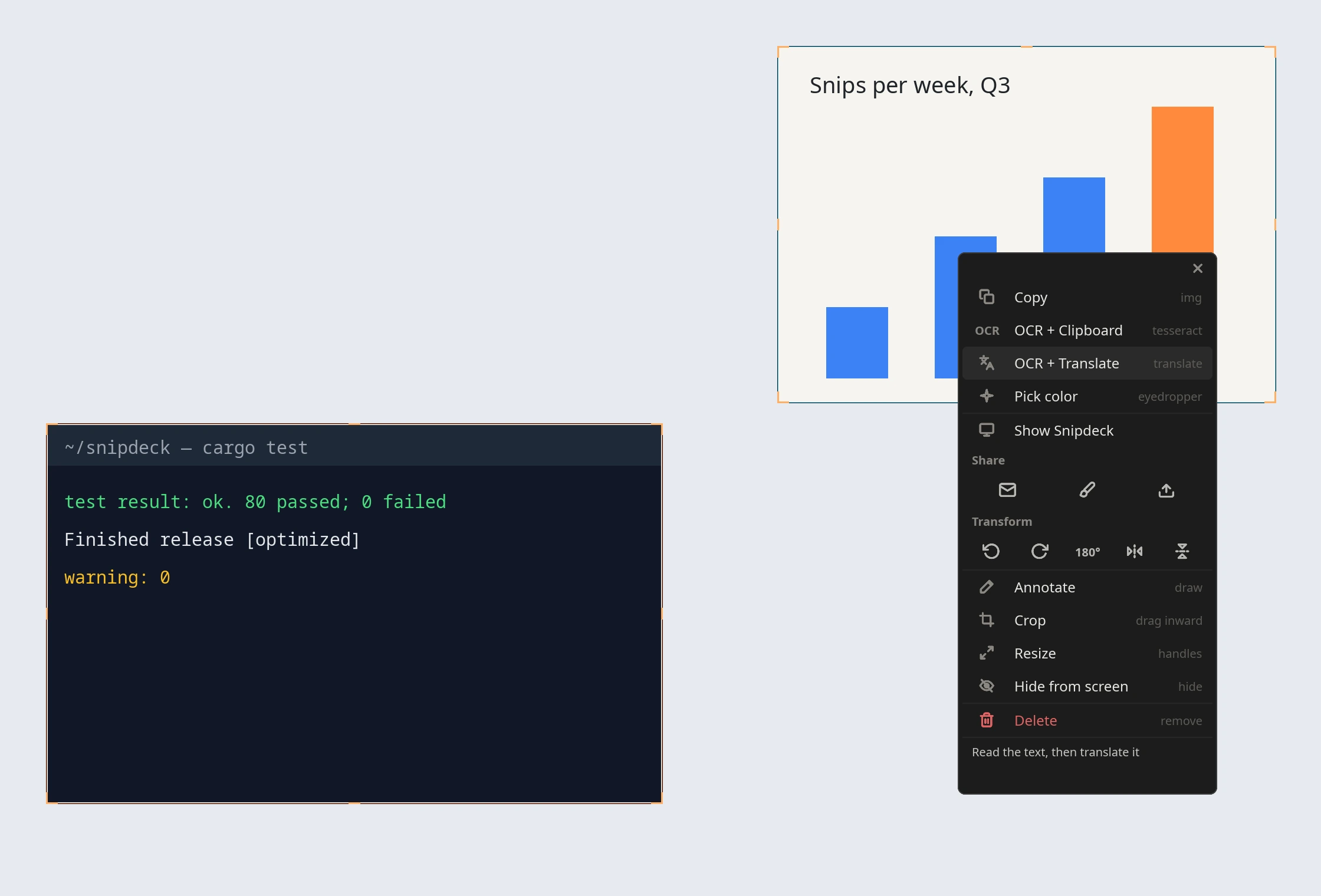
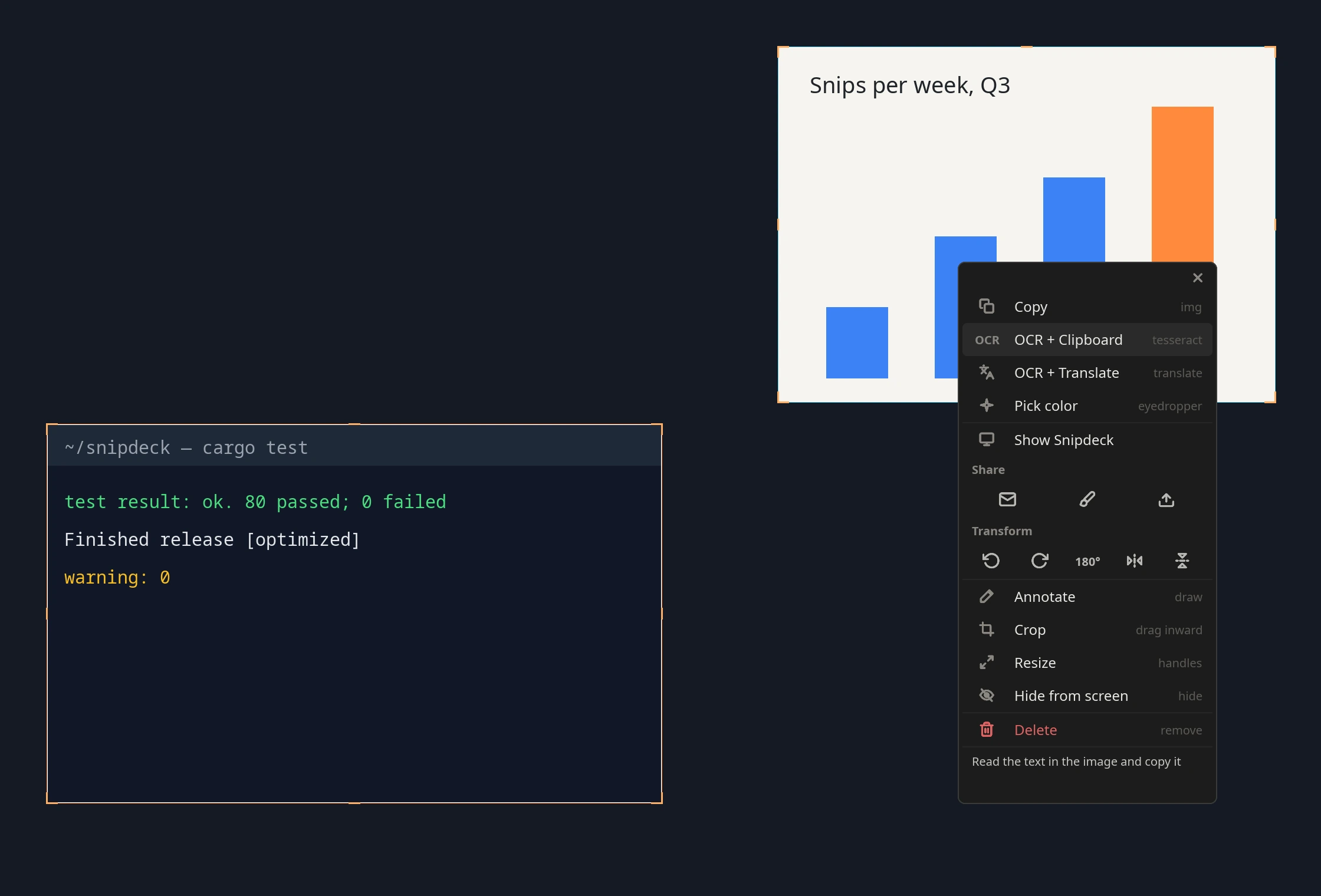
On the desktop, above the other windows
Each snip is a window of its own. Its right-click menu gathers copying, text recognition, sharing, rotating and annotating in one place.
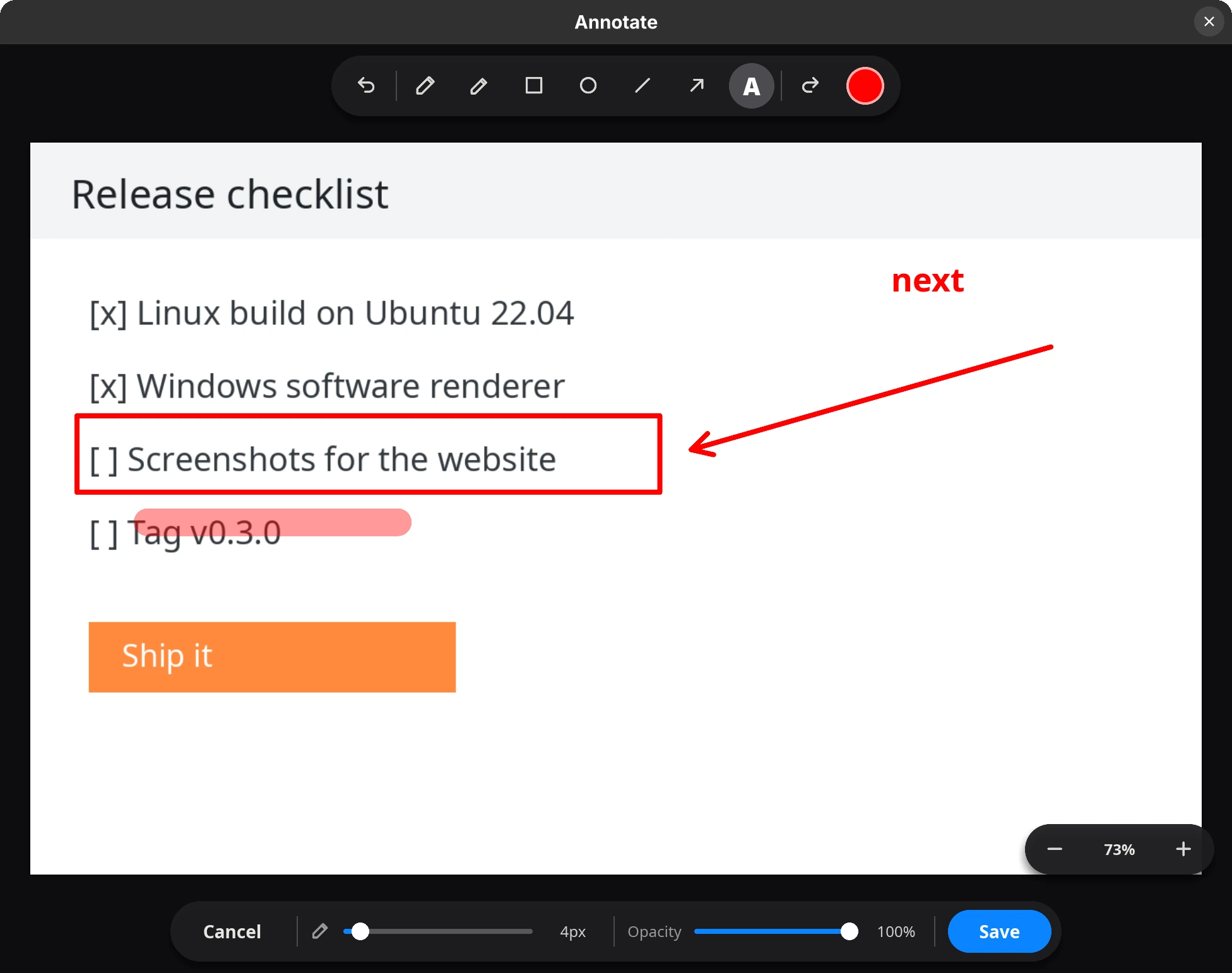
Strokes become part of the image
Add a box, an arrow, a highlight and a note. On save, they are drawn into the snip at its own resolution.
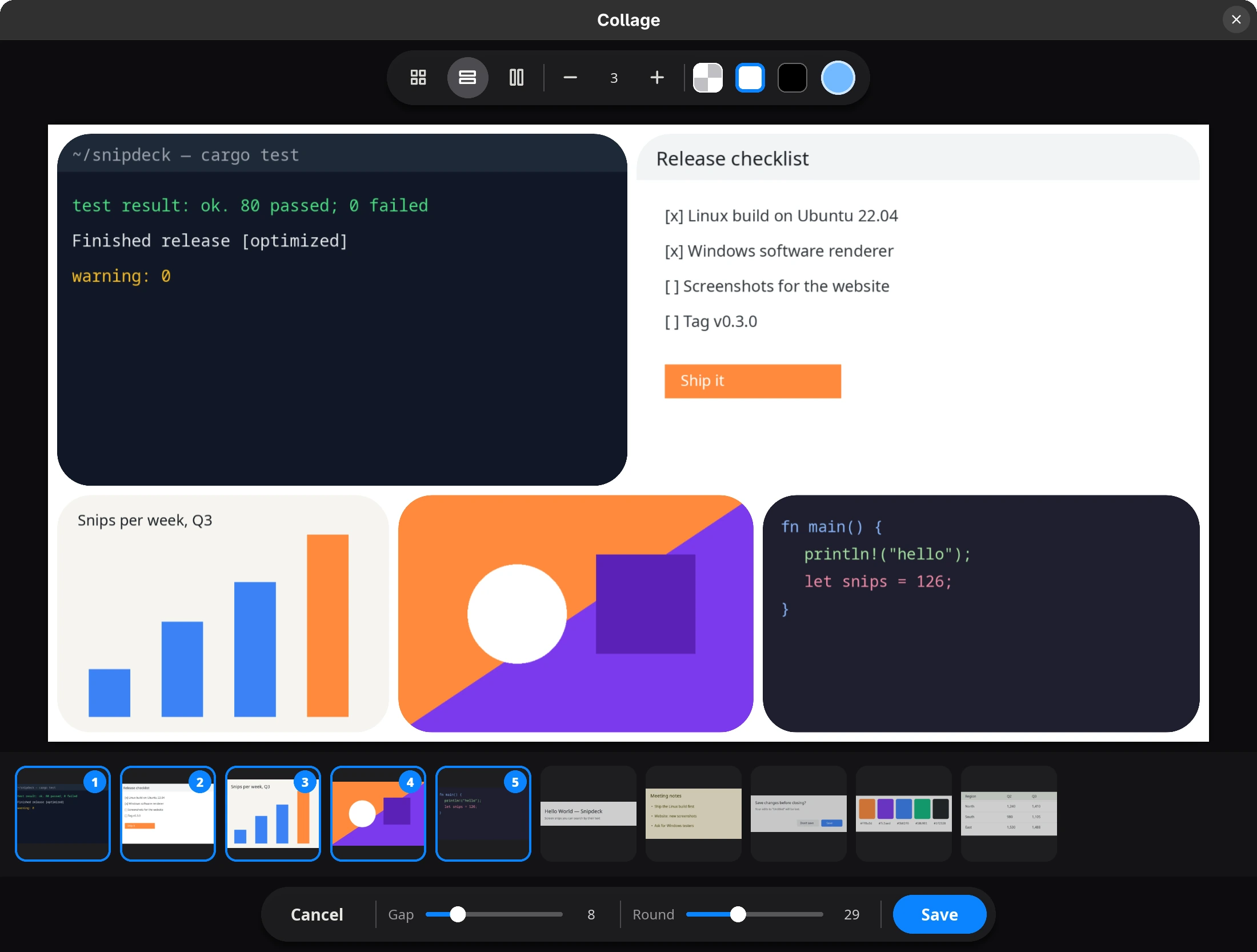
Several snips, one image
Pick snips from the tray; gap, corners and background are yours to set. The result joins the gallery as a new snip.
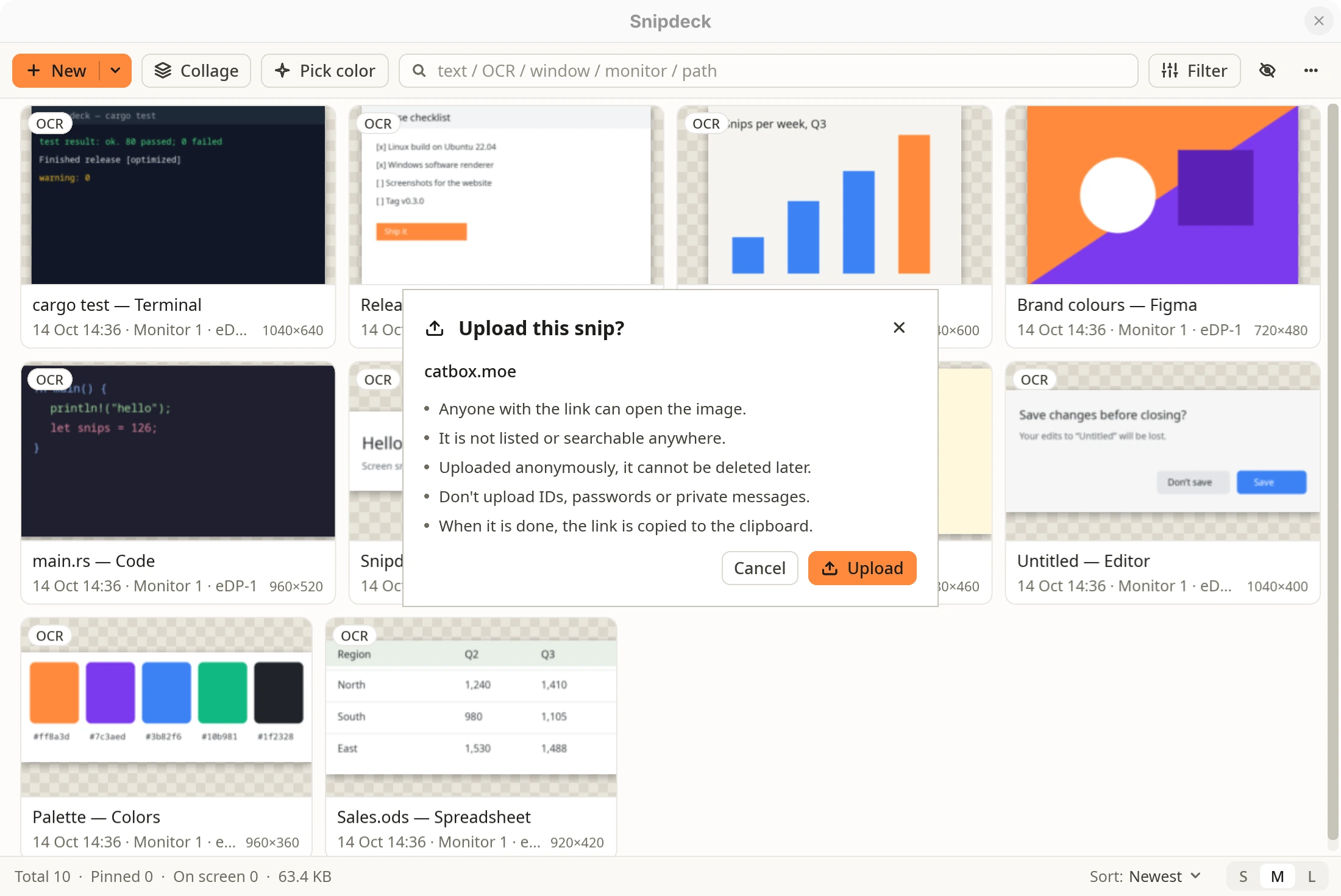
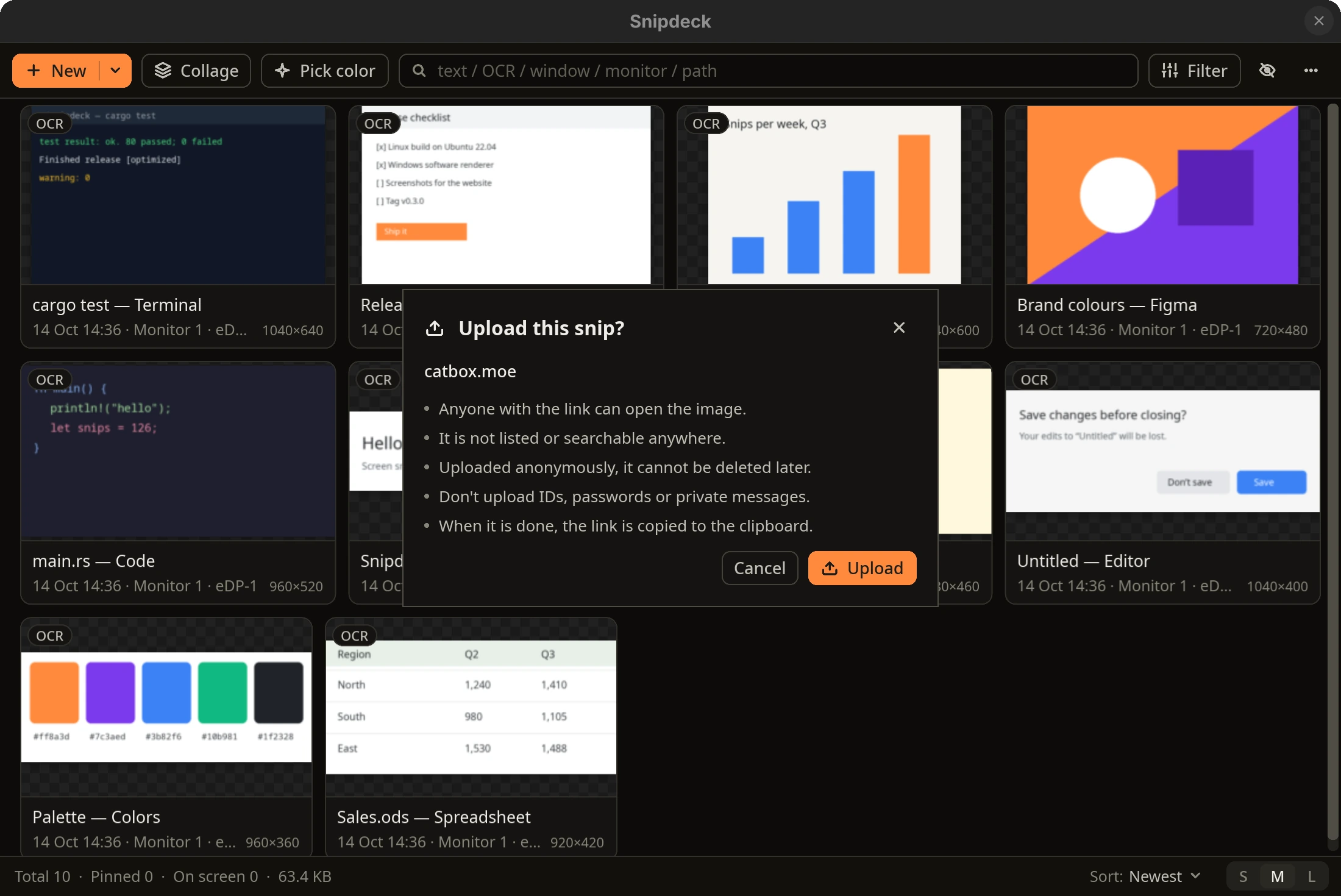
It asks before every upload
The window names the host and its address and says what uploading means; nothing is sent until you press Upload.
What leaves your device
Capture, text recognition and gallery search use no network. Two actions do, and you start both of them.
Privacy and security in the docs →- Capture and OCR
- Nothing; both run on your device.
- Translation
- Only the recognised text, only when you ask, to Google’s public translate endpoint. The image is never sent.
- Upload
- It asks first, every time. The destination is catbox.moe, Imgur or a server of your own added from a ShareX
.sxcufile. - Launch at login
- A plain shortcut in
shell:Startupon Windows, an XDG autostart entry on Linux; nothing written to the registry. Snipdeck starts in the tray.
Download
One .exe for Windows; for Linux, a .deb, an .rpm or an archive that needs no root. No account. Version 0.3.0 is a beta.
File snipdeck-windows-x64.exe
- Windows
- Windows 10 or 11, x64:
snipdeck-windows-x64.exe; one file, no installer - Linux
- x64, glibc 2.30 or later:
.deb(Debian, Ubuntu),.rpm(Fedora, RHEL, openSUSE), orsnipdeck-linux-x64.tar.gzwithinstall.sh - From source
cargo build --releasewith Rust (stable)
Good to know
- Linux desktops
- On GNOME with the shell extension, on KDE Plasma with the KWin script, and on X11 desktops by themselves, snips open where they were captured and stay on top. On sway and Hyprland a snip floats, but opens where the compositor puts it. The Super and Alt drag is GNOME-only; the Linux build is a beta.
- macOS
- Not yet; there is no date.
- Settings
- What changes often is in the gallery’s ⋯ menu; the rest lives in a JSON file you edit before restarting Snipdeck.
Frequently asked questions
All questions →Does it work offline?
Mostly, yes. Capture, OCR (text indexing and OCR + Clipboard), the gallery and search all run with no network at all. Two features reach the network: OCR + Translate, which sends the recognised text to a translation endpoint, and uploads, which ask first every time. On Windows OCR uses the built-in Windows.Media.Ocr engine; on Linux, Tesseract and the language data you install.
Which Linux desktops does it run on?
On every Linux desktop, capture, shortcuts, OCR, the gallery and the right-click menu work. Opening a snip where it was captured, keeping it above other windows and the Super and Alt drag come with the bundled shell extension on GNOME; Wayland does not let an application do these for itself.
Where are my snips stored?
In your user profile. On Windows the database and image cache live under %LOCALAPPDATA%\Snipdeck\, settings in %APPDATA%\Snipdeck\settings.json; on Linux, ~/.local/share/Snipdeck/ and ~/.config/Snipdeck/settings.json. Snips are kept as lossless WebP.
Can I upload to my own server?
Yes. In the gallery’s ⋯ menu, choose Upload to › Add from a .sxcu file… and pick a ShareX custom uploader — the format Zipline, XBackBone, Chevereto and similar servers offer. A file that needs something Snipdeck cannot send is refused at import, with the reason.