Organizing documents
The Stacks and All Pages views, selection, reordering, removing and rotating pages, moving and copying between documents, splitting, preview and search.
On this page (6 sections)
In Deste, every document is a card and every page is a thumbnail. You see the same documents from three tabs: Stacks, All Pages and History. A change you make in one shows up in the others too, and carries over exactly to the PDF you save.
Stacks
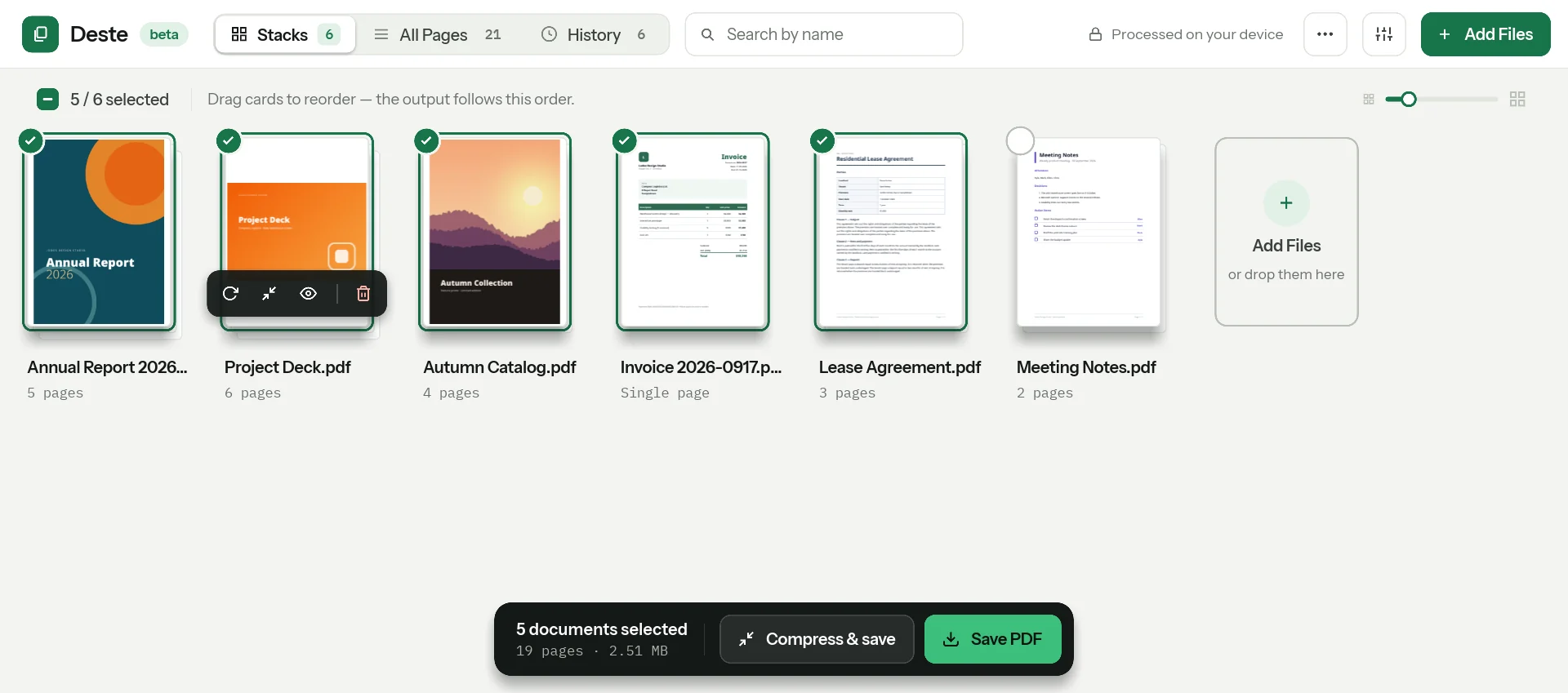
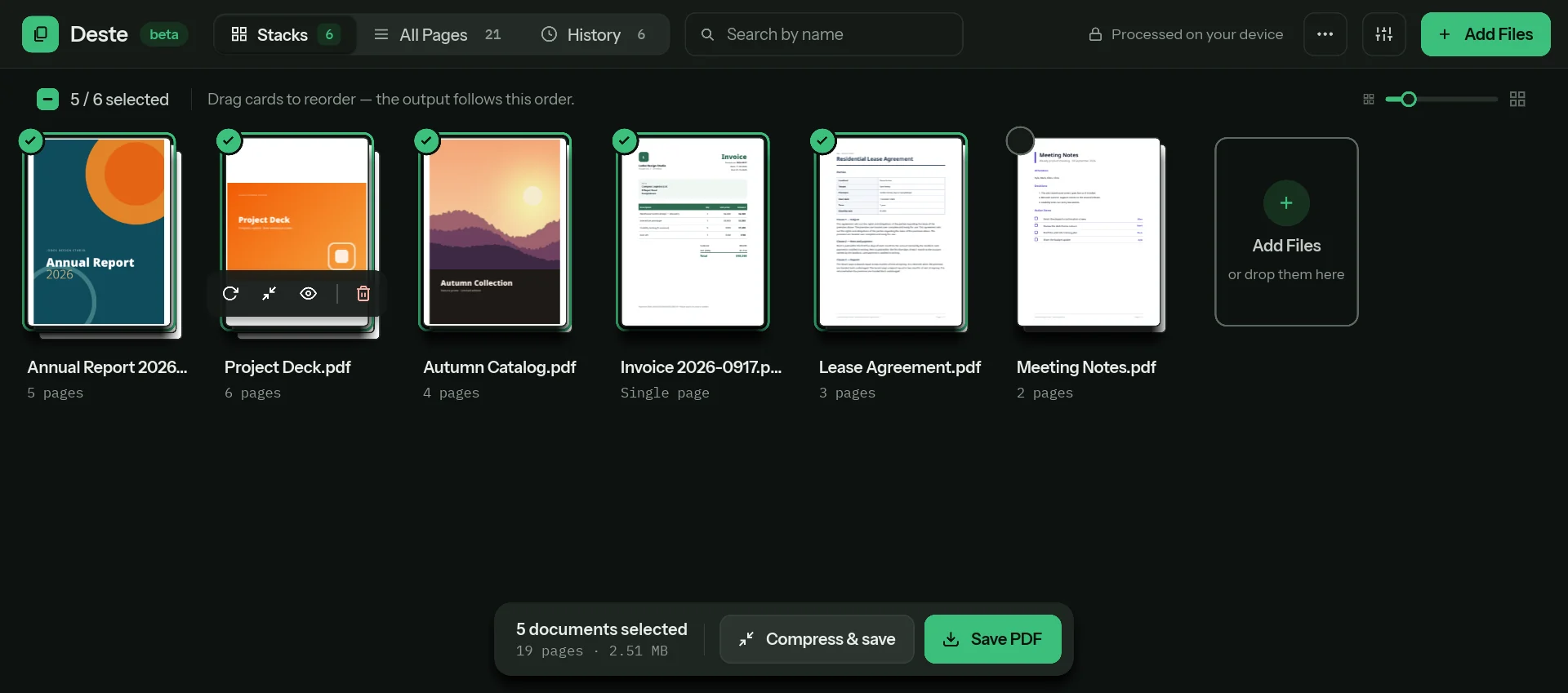
The round selection badge at a card’s top left includes the document in the output or leaves it out. Hovering over a card opens a small toolbar along its bottom edge; on a touch screen, tap the card’s ⋯ button instead:
| Control | What it does |
|---|---|
| Rotate | Turns all of the document’s pages 90°. |
| Compress | Opens the compression window for this document only. |
| Eye | Makes the document Disabled: it stays in the list and looks faded, but is left out of the output. |
| Trash can | Removes the document from the workspace; its copy in history stays. |
- Reordering: grab a card and drag it. The document order in the output is the order on screen.
- Card size: the slider at the top right makes the thumbnails larger or smaller.
- Preview: clicking a card opens the document in the large preview.
- Adding files: the Add Files tile after the last card opens the file picker; you can also drop files on it.
- Bulk selection: the checkbox above the cards selects or deselects every document; next to it you see how many are selected (e.g. 5 / 6 selected). The toolbar’s ⋯ menu also has Select All / Deselect and Invert selection.
- Clear All in the ⋯ menu removes every document from the workspace; the copies in history stay.
All Pages
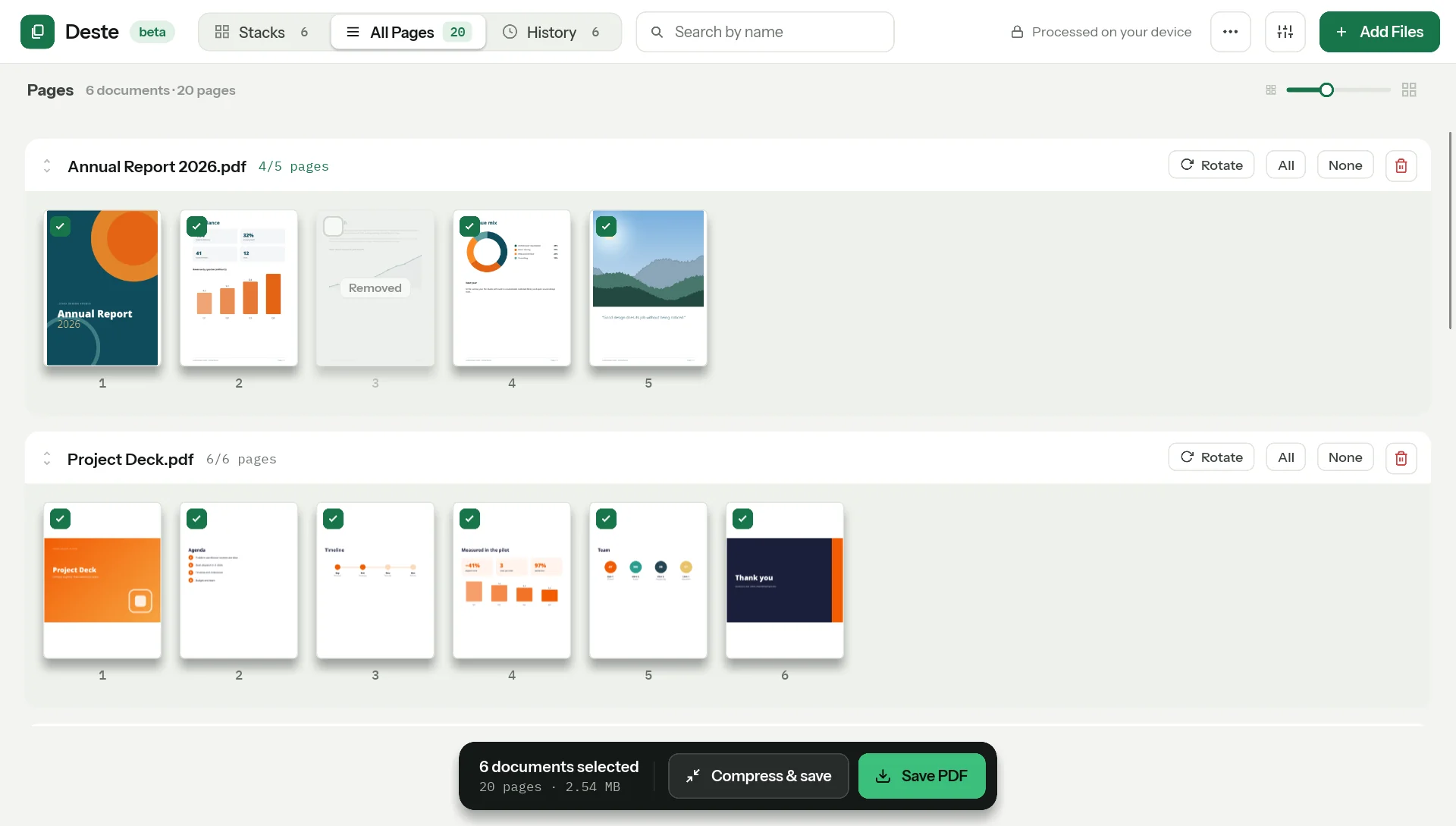
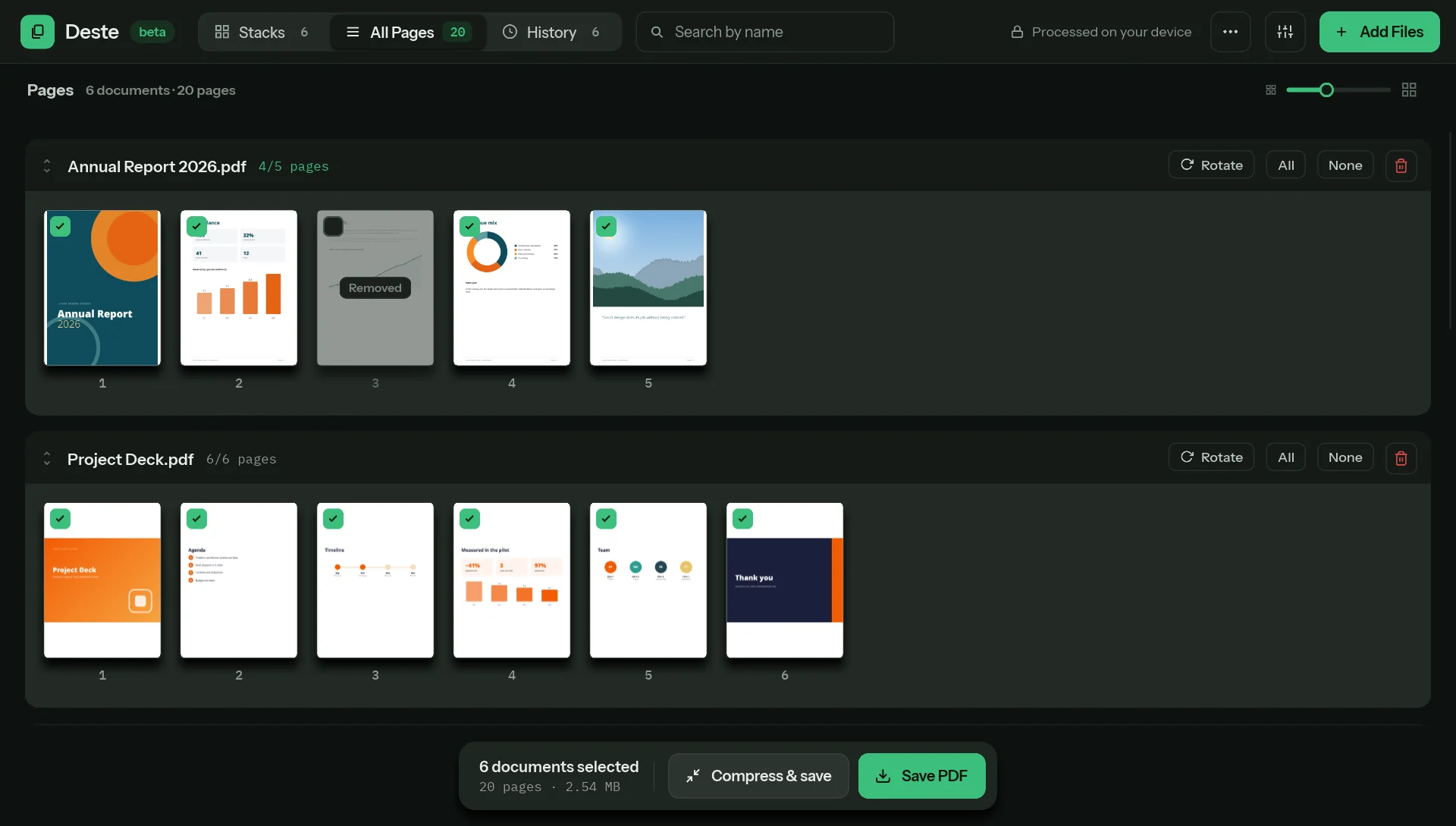
Each document is a row; its header shows the document’s name, how many pages are left (e.g. 4/5 pages) and the document-level controls:
- The checkbox left of the name — includes all of the document’s pages in the output, or leaves them all out. When only some pages are selected, the box shows a dash.
- The rotate icon — rotates all of the document’s pages.
- Trash can — removes the document.
On the pages:
- Unchecking the checkbox leaves the page out of the output; the page looks faded. Checking it again brings it back. Nothing is deleted.
- Hovering over a page shows a rotate button.
- Drag pages within the row to reorder them.
- Clicking a page opens it in the large preview.
Moving and copying between documents
Drag a page and drop it on another document’s row. Deste asks:
- Move — the page leaves the source document and goes to the target. It shows up in the target with a Moved badge.
- Copy — the source document keeps the page, and a copy is added to the target (Copied badge).
To move several pages together, mark them one at a time with Ctrl or as a range with Shift, then drag one of the marked pages.
A moved page keeps working even if you later remove the source document; Deste keeps the PDF the page was read from in memory.
Splitting
While you’re on a page in the preview, click Split:
- Split out — the pages from that page to the end move to a new document (e.g. report.pdf (2)), and the original document keeps the first part.
- Duplicate — the original document keeps all its pages; everything from that page on also becomes a separate new document.
Preview
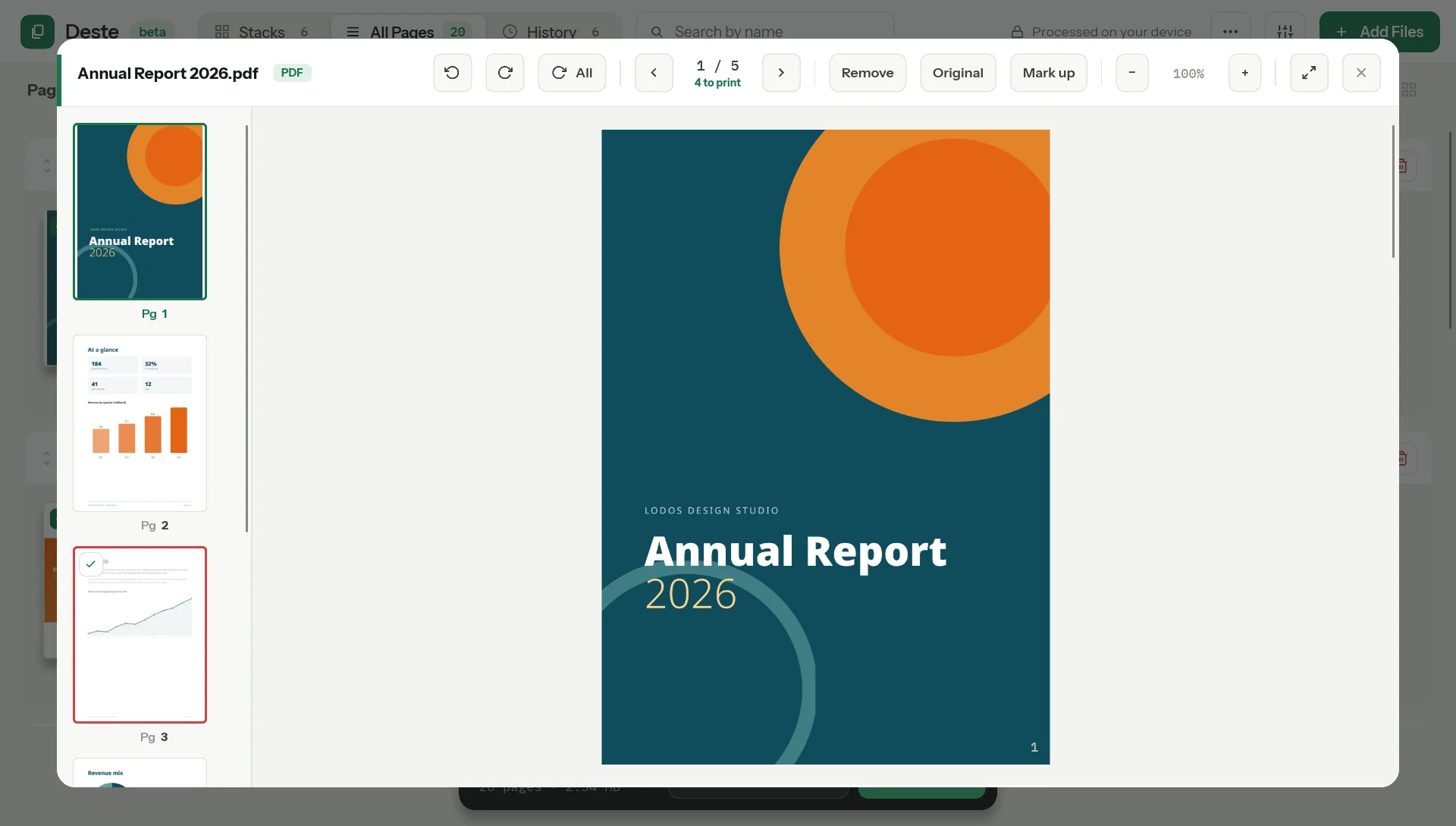
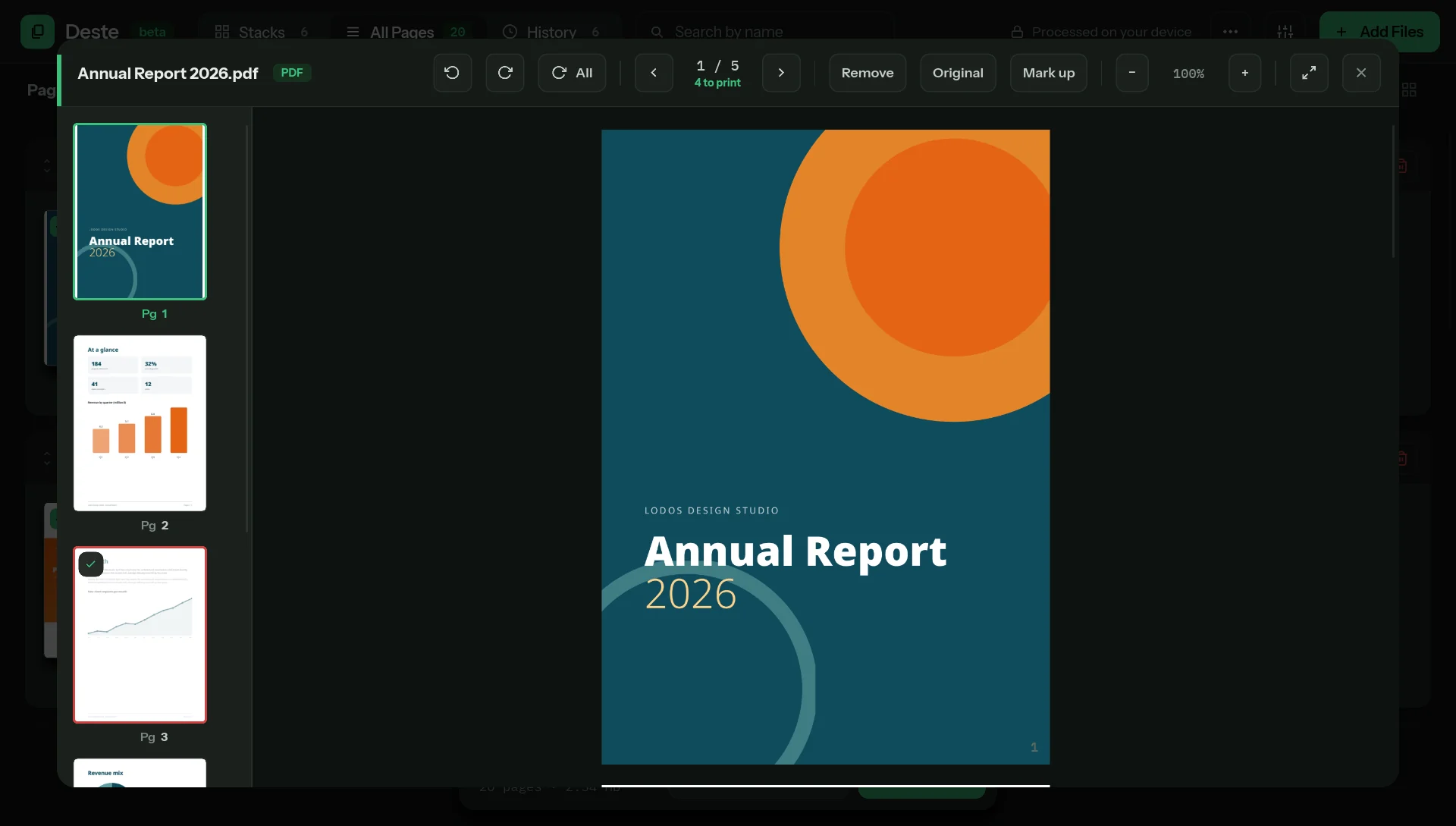
The preview shows the document large, with a page strip on the left; you move through the pages by scrolling. The buttons at the top:
| Button | What it does |
|---|---|
| ↺ / ↻ | Rotates the page shown 90° to the left or right. |
| All | Rotates all pages. |
| ‹ 1 / 6 › | Previous / next page. |
| Remove | Leaves the page shown out of the output (press again to bring it back). |
| Split | Splits the document at this page (see above). |
| − 100% + | Zoom. |
| ⤢ | Full screen. |
Original (returning the document to the state it came in) and Mark up (highlighting, striking through, whiting out) are only in the desktop version for now.
The preview draws only the page on screen and its neighbors, so even a long document opens without a wait.
Search
The magnifying glass in the toolbar opens the search box. The text you type is searched for in document names; documents that don’t match fade, and the number of matching documents appears next to the box. In the History tab, the same box filters your history. When there’s nothing to search, the button is disabled.
On touch screens
- Lists and the preview scroll with your finger.
- Press and hold a card or a page for half a second, then drag. If you move your finger right away, the page scrolls and no drag starts.
- On a narrow screen the toolbar drops to two rows: search, ⋯ and + (Add Files) on top, the tabs below. Settings is in the ⋯ menu too.
Next steps
If something on this page is missing or wrong, write to [email protected].